
Why Quick Access to Your E-Verify Account Matters
E-Verify password reset is a common challenge for HR professionals managing employment eligibility verification. If you’re locked out of your account, here’s the fast solution:
Quick Reset Steps:
- Go to the E-Verify login page
- Click “Sign In with Login.gov”
- Select “Forgot your password?” on the Login.gov screen
- Check your email for a reset link (valid for 30 minutes)
- Create a new password meeting the requirements
You’re not alone if this feels confusing. E-Verify now uses Login.gov as its secure sign-in provider, which means the password reset process happens through Login.gov, not directly through E-Verify. This change improves security but adds a step that catches many users off guard.
The stakes are high. When you can’t access E-Verify, your entire hiring process stops. New employees wait in limbo. Compliance deadlines loom. Federal contractors face potential contract issues. And if you’re managing verification for multiple locations or users, the pressure multiplies.
This guide walks you through every scenario, from standard password resets to corporate administrator functions to troubleshooting when things go wrong. Whether you’re a general user, a program administrator, or managing Web Services integration, you’ll find clear, actionable steps to regain access and keep your verification process running smoothly.
Important note: E-Verify passwords expire every 90 days. You’ll receive warnings at 75 and 80 days, and it’s recommended to reset at least 5-10 days before the 80-day mark to avoid lockout. Proactive password management saves you from urgent, stressful situations.
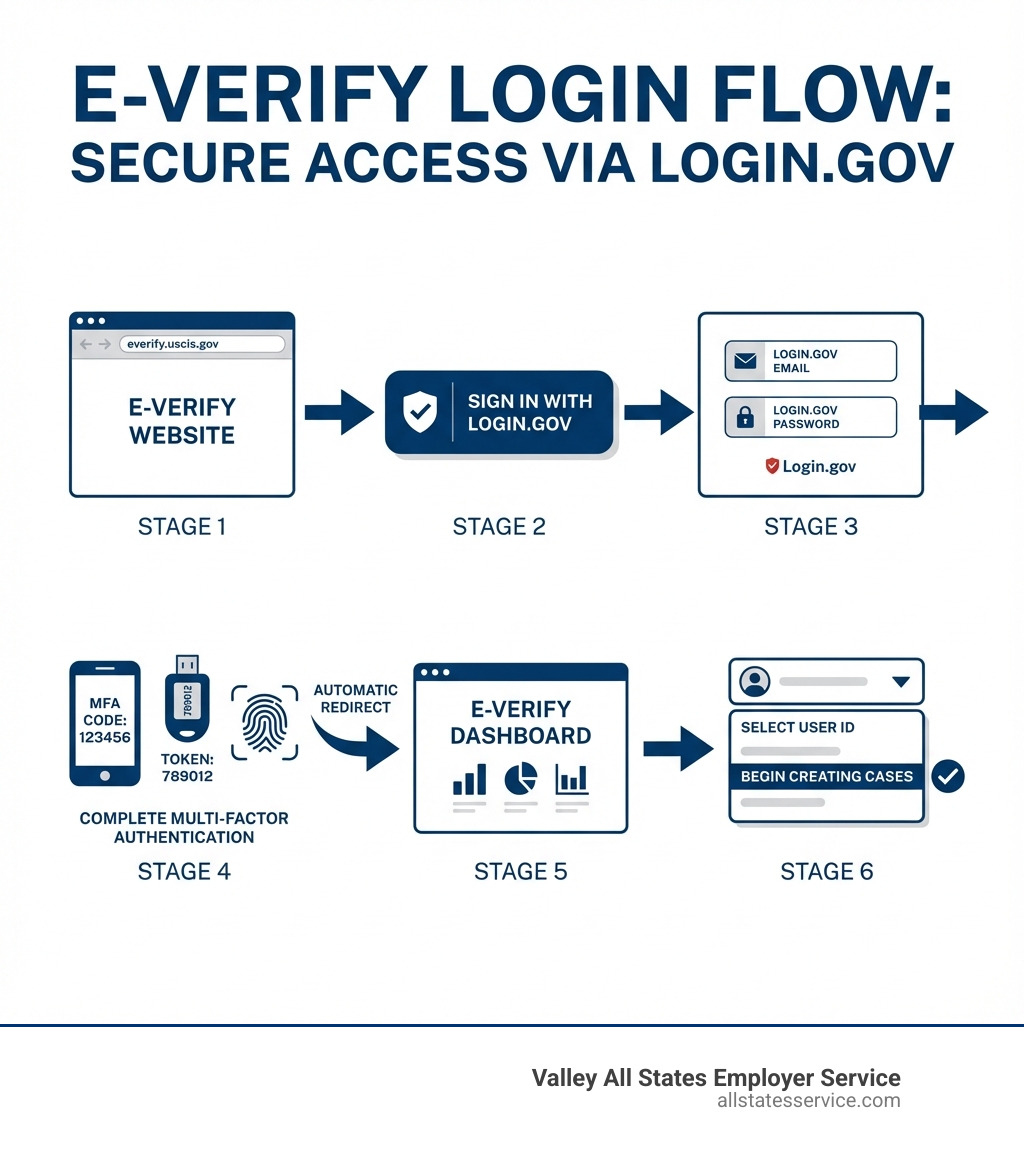
The New Gateway: Why Your E-Verify Login Goes Through Login.gov
E-Verify has made a significant shift in how users access the system, moving to Login.gov as its secure sign-in provider. This change wasn’t just for convenience; it’s a strategic move to improve account protection and streamline access to various government services. Understanding this new gateway is the first step to mastering your E-Verify password reset process.
Login.gov acts as a single sign-on solution for many government websites, including E-Verify. This means when you log into E-Verify, you’re actually authenticating through Login.gov first. This centralized approach brings improved security, primarily through the mandatory use of Multi-Factor Authentication (MFA), also known as two-factor authentication. With MFA, you don’t just need something you know (your password), but also something you have (like a code from your phone or an authenticator app) to access your account. This adds a critical layer of defense against unauthorized access.
One crucial point to grasp is the separation of account management. E-Verify does not manage your Login.gov account. All aspects related to your Login.gov account, including password resets and authentication method issues, are handled directly by Login.gov. This means if you need to reset your password, you’ll be doing it through Login.gov’s system, not E-Verify’s directly.
For each user accessing E-Verify, a unique Login.gov account with a unique email address is required. Shared accounts are not permitted, reinforcing individual accountability and security. We strongly recommend establishing at least two authentication methods within your Login.gov account. This practice ensures you have a backup if you lose access to your primary method, preventing potential lockouts. You can learn more about managing your authentication methods directly on the authentication method page.
This integration with Login.gov ultimately simplifies access while bolstering security for your E-Verify activities. For a comprehensive overview of how this works, we encourage you to review the official guide on Signing in to E-Verify with Login.gov.
How to Complete an E-Verify Password Reset via Login.gov
When you need to perform an E-Verify password reset, the process is now managed through Login.gov. This self-service option is designed to be straightforward, using email verification and a one-time code to help you regain access securely. Let’s walk through the steps together.
Step 1: Start from the Official E-Verify Website
Your journey to a new password begins at the familiar E-Verify portal.
- Steer to the official E-Verify login page. Always ensure you are on a secure .gov website to protect your sensitive information.
- Review and click “I Agree” to the User Agreement.
- Once there, instead of looking for a “Forgot Password” link directly on the E-Verify page, you will click the prominent “Sign In with Login.gov” button. This action redirects you to the Login.gov portal, which handles the actual authentication.
Step 2: Initiate the Password Reset on Login.gov
Once you’re on the Login.gov page, it’s time to tell the system you need a new password.
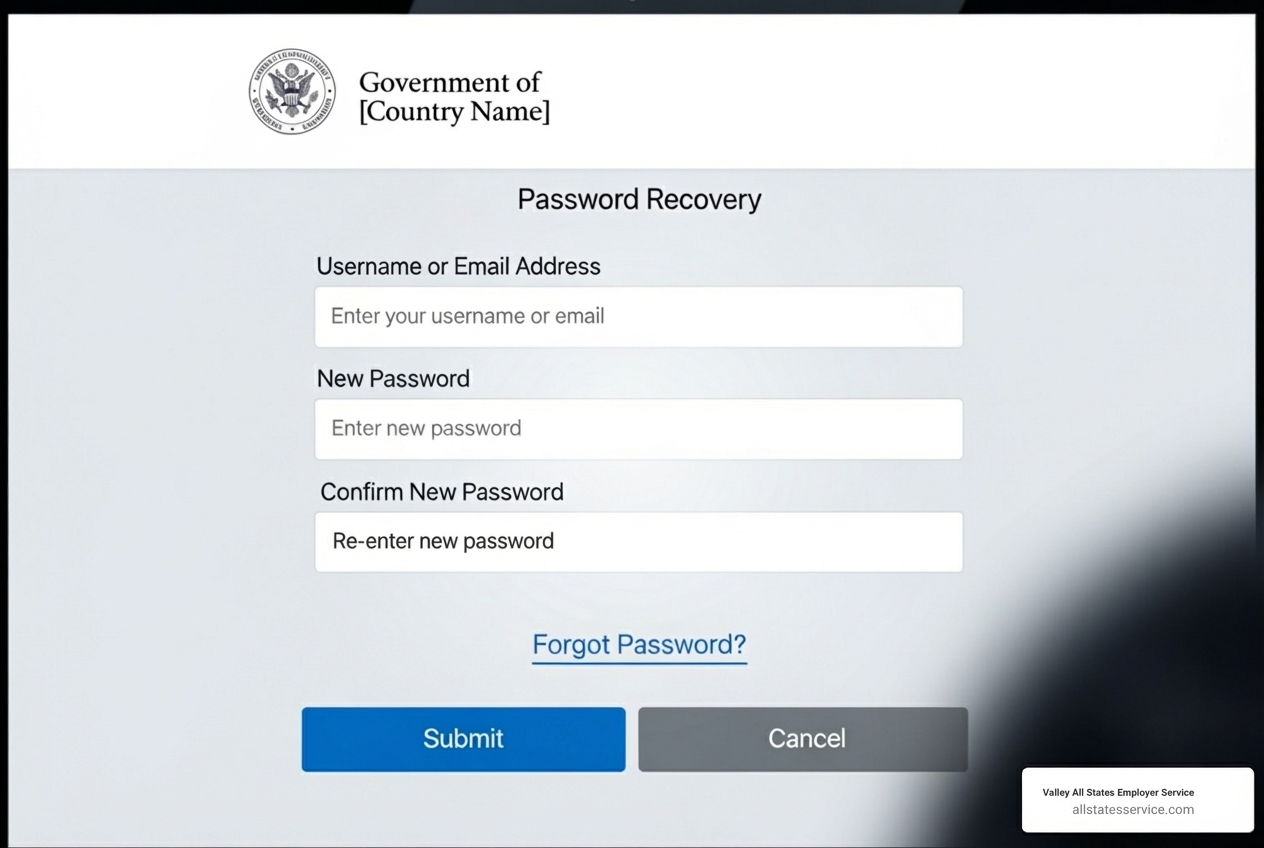
- On the Login.gov screen, locate and click the “Forgot your password?” link. This link is typically found below the password entry field.
- Login.gov will then ask for the email address associated with your Login.gov account. This should be the same email you use to sign into E-Verify.
- Enter your associated email address and submit the request. Login.gov will send a password reset message to this email address. For more detailed guidance on this step, you can refer to the Login.gov Help Center’s Forgot your Password page.
Step 3: Create Your New Secure Password
This is where you’ll finally set your new, strong password.
- Check your inbox for an email from Login.gov. This email will contain a unique link with a one-time code.
- Click on this link. Be quick, though! The password reset link is only valid for 30 minutes. If you don’t create a new password within that timeframe, the link will expire, and you’ll need to restart the process from Step 1.
- You’ll be directed to a page where you can enter and confirm your new password. It’s crucial that your new password meets E-Verify’s stringent requirements to ensure maximum security.
Here are the E-Verify password requirements:
- It must be between 8 and 14 characters long.
- It must include a combination of uppercase letters, lowercase letters, numbers, and special characters (such as
!@$%*()<>?:;{} +-). - It cannot contain more than two identical consecutive characters (e.g., “aaa” is not allowed).
- The first and last characters of your password cannot be numbers.
Choosing a strong, unique password is a best practice for all your online accounts, and especially for sensitive systems like E-Verify. For additional assistance with your E-Verify login, our E-Verify Login Help page offers further resources.
Managing Passwords for Different E-Verify User Roles
E-Verify accounts come with different roles, and while the underlying E-Verify password reset process for self-service is usually through Login.gov, there are nuances, especially for administrators. Understanding these distinctions helps ensure smooth operations for your organization.
For General Users and Program Administrators
For most E-Verify users, including general users and Program Administrators, the self-service password reset outlined above is the standard procedure. If you forget your password, you will initiate the reset through Login.gov.
Sometimes, an account might get locked due to too many incorrect password attempts or after 270 days of inactivity. If this happens, you will typically be automatically directed to an “Account Locked” page within E-Verify. From there, you can often select a “Reset Password” option, which will guide you back to the Login.gov password reset flow.
It’s vital for all users to regularly review their E-Verify User Profile to ensure the email address, name, and telephone number are accurate. An outdated email address can prevent you from receiving password reset links, creating a significant hurdle. For more information on logging into E-Verify, you can refer to our E-Verify Employer Login guide.
For Corporate Administrators: A Guide to User E-Verify Password Reset
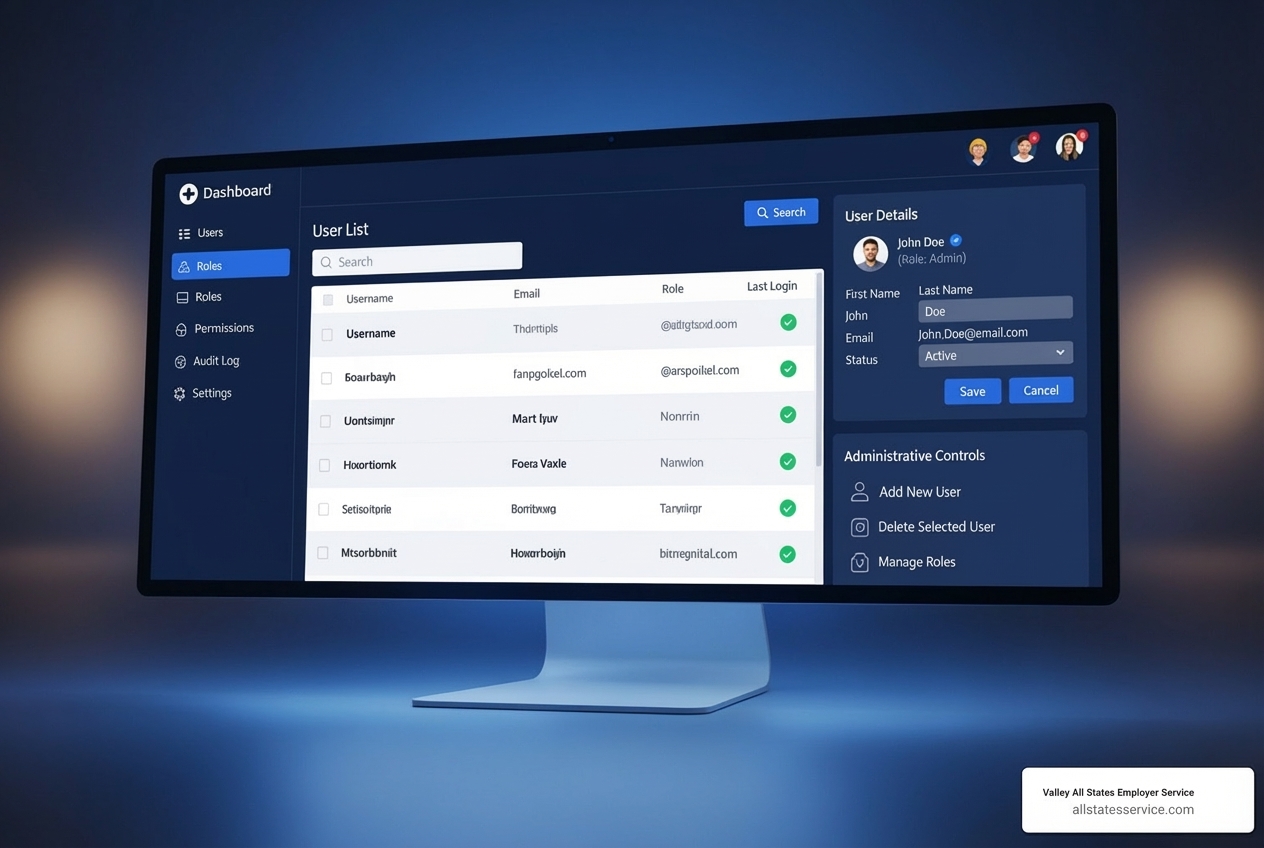
Corporate Administrators hold a special role within E-Verify. They have the authority to manage other users within their company’s account, which includes resetting passwords for those users. This is an administrative function that differs from a user resetting their own password.
If a general user or a Program Administrator within your organization needs their password reset, and they are unable to do it themselves (perhaps due to being locked out or having issues with their Login.gov account), a Corporate Administrator can step in.
Here’s how a Corporate Administrator resets another user’s password:
- The Corporate Administrator must log in to the E-Verify website using their own Login.gov credentials.
- Steer to the “Company Account” section, then select “View Existing Users.”
- Search for the specific user whose password needs to be reset. You can typically search by name or filter by user role.
- Once the user is located, select their User ID to view their account details.
- Within the user’s account details, there will be a “Change Password” or “Reset User Password” section.
- The Corporate Administrator will then assign a temporary password by entering it into both the “New Password” and “Confirm New Password” fields.
- Click “Save” to apply the changes. The user can then use this temporary password to log in and should be prompted to create a new, permanent password that meets E-Verify’s requirements.
For more detailed instructions on this process, you can consult the E-Verify User Manual, specifically the section on resetting user passwords here. This administrative capability is crucial for maintaining control and access for your team. Our E-Verify Employer Agent Account Guide also provides valuable insights into managing various aspects of your E-Verify account.
Special Case: Resetting a Web Services (WS-User) Password
For organizations that integrate E-Verify with their own HR software or systems, there’s a specific type of user called a Web Services User ID (WS-User). These accounts are not for human users to log into the E-Verify portal directly but are used by software applications to communicate with E-Verify. Resetting a WS-User password follows a distinct procedure.
Typically, a Program Administrator is responsible for managing WS-User accounts and their passwords.
Here are the steps for resetting a Web Services User ID password:
- A Program Administrator must log on to the E-Verify website using their own Login.gov credentials.
- Steer to “View Existing Users” specifically under the “Web Services” section.
- Locate the relevant Web Services account. You might need to search for the WS-User ID or use a generic search for “All” User Status.
- Select the Web Services account and click on its User ID to access the account details.
- In the “Reset User Password” fields, enter the new password.
- Click “Submit” to save the change.
It’s vital to remember that after resetting a WS-User password, you must update the credentials in your integrated software immediately. Failure to do so will break the connection between your system and E-Verify, preventing new cases from being processed.
For security best practices, E-Verify recommends changing your Web Services password every 60 days. This regular rotation helps protect your integration from potential vulnerabilities. For more details on system requirements related to E-Verify, you can check our E-Verify System Requirements Guide.
Proactive Password Maintenance and Troubleshooting
While knowing how to perform an E-Verify password reset is essential, proactive management and understanding common troubleshooting steps can prevent stressful lockouts and ensure continuous access. We believe in being prepared, not just reactive.
E-Verify Password Expiration Rules You Need to Know
E-Verify enforces strict password expiration policies to maintain high security standards. Your E-Verify password has a maximum lifetime of 90 days. This means you’ll need to change it periodically, even if you haven’t forgotten it.
To help you stay on top of this, E-Verify provides timely warnings:
- Users will receive a warning about their password expiration when they reach the 75-day mark.
- Another warning will be issued when users are at the 80-day mark.
We strongly recommend resetting your password at least 5-10 days within the 80-day warning period. If you wait until after the 90-day limit, your password will expire, and you risk being locked out of using E-Verify. An expired password will result in a “Password Expired” error message when you try to process a case. Staying ahead of these deadlines is a simple way to avoid unnecessary disruptions to your employment verification process. You can find more information on this topic on the official Updating Your E-Verify Password? page.
Solving Common E-Verify Password Reset Problems
Even with clear instructions, sometimes things go awry. Here are solutions to common issues you might encounter during an E-Verify password reset:
- “I didn’t receive the password reset email!”: First, check your spam or junk mail folder. Sometimes, legitimate emails can get caught there. If it’s not there, ensure the email address you entered on Login.gov is the exact one associated with your account.
- Incorrect User ID: Your E-Verify User ID is separate from your Login.gov email. When initiating a reset, ensure you’re providing the correct Login.gov email address.
- Lost email access: This is a trickier situation. If you lose access to the email address associated with your Login.gov account, and you haven’t set up multiple authentication methods, you might be in a tough spot. Since E-Verify does not manage your Login.gov account, Login.gov handles these issues. According to Login.gov, if you cannot sign in with your only authentication method, you might have to delete your Login.gov account and create a new one. This would then require you to re-link your new Login.gov account to your existing E-Verify account, which can be a more involved process. This highlights the importance of using a reliable email address and setting up multiple authentication methods within Login.gov. For assistance with authentication methods, refer to Login.gov’s Issues with authentication methods page.
- Expired reset link: As we mentioned, the password reset link is only valid for 30 minutes. If it expires, simply go back to the E-Verify login page, click “Sign In with Login.gov,” and repeat the “Forgot your password?” process to request a new link.
Who to Contact When You’re Still Stuck
If you’ve exhausted the self-service options and troubleshooting steps, don’t worry, help is available. Knowing who to contact is key:
- Login.gov Support: For any issues directly related to your Login.gov account, such as not receiving password reset emails, problems with multi-factor authentication, or general Login.gov account management, you should contact Login.gov support. They are available 24 hours a day, seven days a week.
- E-Verify Contact Center: If your issue is specific to E-Verify (e.g., questions about the E-Verify system itself, case processing, or if you’re a Corporate Administrator unable to reset a user’s password and no other Corporate Administrator is available), you can reach out to the E-Verify Contact Center.
- Your Company’s Corporate Administrator: If you are a general user or Program Administrator struggling with a password reset, your company’s Corporate Administrator might be able to reset your E-Verify password for you, as detailed in the section above. This is often the quickest route for internal users.
For comprehensive assistance, including contact details and further guidance, our E-Verify Customer Support resources are always available to help.
Frequently Asked Questions about E-Verify Logins
We know you might have a few more questions rattling around. Here are some of the most common ones we encounter regarding E-Verify logins and password resets.
How long is the E-Verify password reset link valid?
The password reset link sent to your email from Login.gov is valid for 30 minutes. If you don’t use it to create a new password within that timeframe, it will expire, and you’ll need to initiate the password reset process again.
What are the current E-Verify password requirements?
To ensure robust security, your new E-Verify password (set through Login.gov) must adhere to the following rules:
- It needs to be between 8 and 14 characters in length.
- It must incorporate a mix of uppercase letters, lowercase letters, numbers, and special characters (such as
!@$%*()<>?:;{} +-). - You cannot use more than two identical consecutive characters (e.g., “111” or “aaa” is not allowed).
- Crucially, the first and last characters of your password cannot be numbers.
Can my company administrator reset my password for me?
Yes, if you are a general user or a Program Administrator, your company’s Corporate Administrator can reset your E-Verify password. This is done through the “View Existing Users” section within the Corporate Administrator’s E-Verify account. They will assign a temporary password, which you will then use to log in and set your own new, permanent password.
Conclusion: Simplify Your E-Verify Compliance
Navigating the E-Verify system, especially when it comes to E-Verify password reset and login troubleshooting, can feel like a maze. However, by understanding the role of Login.gov, following the step-by-step procedures, and practicing proactive password maintenance, you can ensure seamless access and maintain compliance. The integration with Login.gov is designed to improve security, and with a little know-how, it becomes a powerful tool for managing your employment eligibility verification.
Remember the critical takeaways: always start your password reset through Login.gov, adhere to the strict password requirements, and be mindful of the 30-minute validity for reset links. Proactive password changes, especially as you approach the 75- and 80-day warning marks, will save you from unexpected lockouts and downtime. If you ever hit a snag, remember your resources: Login.gov support, the E-Verify Contact Center, or your internal Corporate Administrator.
At Valley All States Employer Service, we understand the complexities employers face with E-Verify and I-9 compliance. We provide expert, impartial, and efficient outsourced E-Verify workforce eligibility verification, minimizing errors and administrative burdens for our clients. Whether you’re in Maryland, Lutherville MD, or anywhere across the United States, we are here to streamline your compliance efforts.
Ready to simplify your E-Verify process and ensure continuous compliance? Explore our comprehensive E-Verify Services and let us help you manage your workforce eligibility verification with confidence. Take control of your E-Verify process today.