
Understanding the E-Verify User Guide and Why It Matters
An E-Verify user guide is your roadmap to navigating the federal system that verifies employment eligibility for newly hired employees. If you’re looking for quick access to official guidance, here’s what you need to know:
Quick Access to E-Verify User Guides:
- Official USCIS Manual (M-775): Available as a PDF download (152.73 KB) or printable HTML version
- Purpose: Step-by-step instructions for creating cases, handling results, and staying compliant
- Key Sections: Enrollment, case creation, photo matching, mismatch handling, and case closure
- Access Methods: Employer, E-Verify Employer Agent, Corporate Administrator, and Web Services
- User Roles: Program Administrator and General User (with different permissions)
E-Verify is an internet-based system that implements the requirements of the Illegal Immigration Reform and Immigrant Responsibility Act (IIRIRA). It allows U.S. employers to electronically verify employment eligibility by checking information from Form I-9 against records from the Department of Homeland Security (DHS) and Social Security Administration (SSA).
For busy HR professionals, the challenge isn’t just understanding what E-Verify does. It’s knowing how to use it correctly without making costly compliance mistakes. The official user guide walks you through everything from enrolling in the system to handling a Tentative Nonconfirmation (mismatch).
The stakes are real. Common mistakes found by USCIS monitoring include immediately terminating employees after receiving a mismatch result, creating duplicate cases, or failing to notify employees properly. These errors can lead to serious compliance issues and potential penalties.
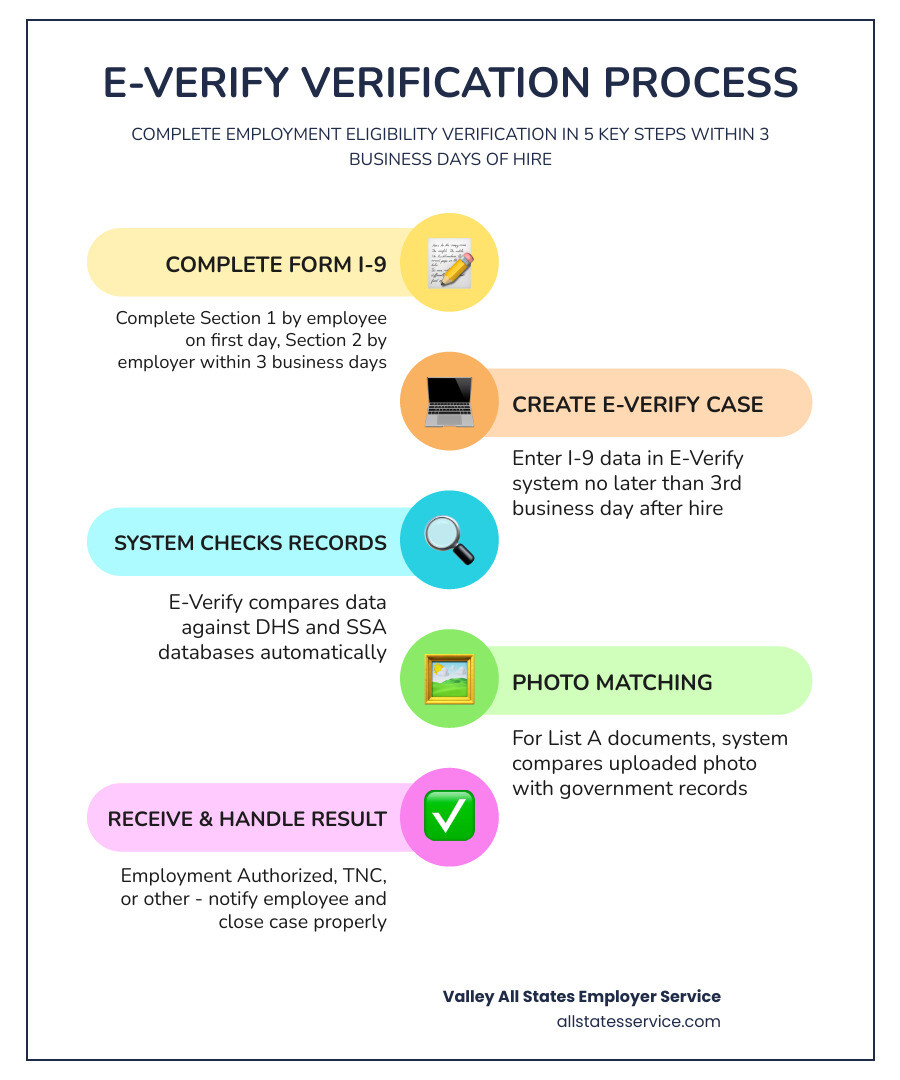
This article breaks down the E-Verify user guide into practical, easy-to-follow steps. You’ll learn when to create cases (no later than the third business day after hire), how photo matching works, what each case result means, and how to handle mismatches without violating employee rights.
Discover more about E-Verify user guide:
Getting Started with the E-Verify User Guide
When you first dive into electronic verification, it helps to know that the system is designed to be flexible. Depending on the size of your company and how you handle HR, there are four primary ways to access the system. We often see small businesses choose the direct “Employer” method, while larger corporations with multiple locations might prefer the “Corporate Administrator” setup.
If the thought of managing another government portal makes you want to hide under your desk, you can also use an E-Verify Employer Agent. This allows an expert third party, like us at Valley All States Employer Service, to handle the heavy lifting for you. For those who love automation, “Web Services” allows your existing HR software to talk directly to the E-Verify system.
Before you can start checking names, you have to go through the E-Verify Registration Process. This involves signing a Memorandum of Understanding (MOU), which is basically a fancy way of saying you agree to follow the rules of the program.
Accessing the Official E-Verify User Guide
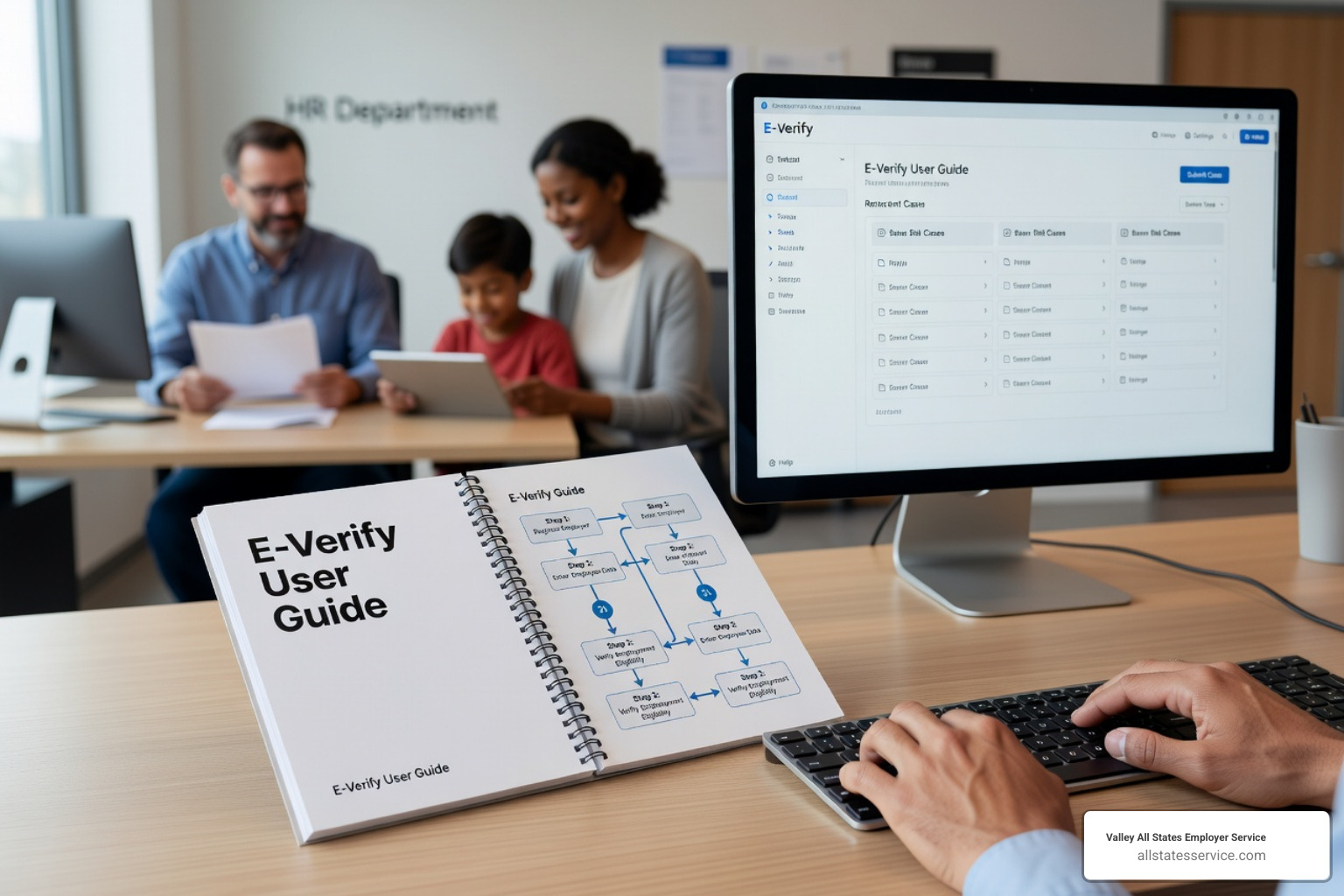
The “Bible” of this process is the M-775, or the E-Verify user guide. You can find the most current version online, and we highly recommend bookmarking the digital version rather than printing a 100 page stack of paper. The digital version is updated in real time, ensuring you always have the latest rules on hand.
To ensure the system works correctly on your office computers, check out the E-Verify System Requirements Guide. Generally, you just need a modern web browser and a secure internet connection. If you prefer a physical copy for your desk, the USCIS provides a printable HTML export link that formats the manual perfectly for your printer.
User Roles and Permissions
Not everyone in your office needs the same level of access. E-Verify breaks users down into two main categories:
- Program Administrators: These are the “super users.” They can create and manage cases, but they also have the power to add or delete other users and update company profile information. Every account must have at least one.
- General Users: These folks can create and manage cases but cannot change account settings or manage other users.
Before anyone gets a login, they must complete a mandatory tutorial and pass a knowledge test. It’s a bit like a mini-bar exam for HR, but it ensures everyone knows the difference between a “Final Nonconfirmation” and a “Case in Continuance.” We recommend performing account maintenance once or twice a year to remove inactive users and keep your contact info fresh.
Creating a Case and Photo Matching
The E-Verify user guide is very clear about one thing: the process always starts with a completed Form I-9. You cannot use E-Verify to prescreen job applicants. You can only create a case after an individual has accepted a job offer and filled out their paperwork.
The “3-day rule” is the golden rule of E-Verify. You must create the case in the system no later than the third business day after the employee starts work for pay. If you wait until the fourth day, the system will ask you for a reason for the delay. To stay on the right side of the law, always refer to the Handbook for Employers M-274 for specific I-9 questions. Understanding the link between E-Verify and I-9 is essential for a smooth onboarding process.
Key Rules in the E-Verify User Guide
To keep things fair and legal, there are a few “must-dos” and “must-nots.” For starters, while providing a Social Security Number (SSN) is technically optional on a standard Form I-9, it is mandatory for E-Verify. If an employee hasn’t received their SSN yet, you must wait to create the E-Verify case, but you should still complete the Form I-9 on time.
You are also required to display the “Notice of E-Verify Participation” and the “Right to Work” posters in both English and Spanish. These should be placed where all potential hires can see them. Following E-Verify Employer Responsibilities helps prevent claims of discrimination or unfair hiring practices.
How Photo Matching Works
Photo matching is one of the coolest (and most important) features of the system. It’s designed to stop people from using “borrowed” documents. When an employee presents certain List A documents, the system will display a photo from the government’s database.
The documents that trigger this are:
- U.S. Passports or Passport Cards
- Permanent Resident Cards (Form I-551)
- Employment Authorization Documents (Form I-766)
Your job is to compare the photo on the physical document to the photo on your computer screen. You aren’t comparing the photo to the person standing in front of you, you are comparing the document to the government’s record of that document. If they don’t match, it could be a sign of a fraudulent document.
Navigating Case Results and Mismatches
Most of the time, you’ll see a green “Employment Authorized” result almost instantly. When that happens, the system (for direct users) automatically closes the case. You just record the case number on the Form I-9 and move on with your day.
However, sometimes the system needs a bit more help. You might see “E-Verify Needs More Time,” which means DHS is doing a manual check. This usually resolves within 24 hours, but can take up to three business days. You should check your E-Verify Case Status daily for updates.
Handling a Tentative Nonconfirmation (TNC)
A TNC, or a mismatch, doesn’t mean the employee isn’t allowed to work. It just means the info you typed in doesn’t match what the SSA or DHS has on file. This could be as simple as a misspelled name or an unreported marriage.
When a mismatch happens, the E-Verify user guide requires you to:
- Notify the employee privately: Don’t shout it across the office!
- Provide the Further Action Notice: This document explains why there is a mismatch and what the employee can do.
- Ask if they want to contest: The employee decides whether to fight the result or not.
You cannot take any “adverse action” (like firing them or cutting their hours) while they are working to resolve a E-Verify Tentative Nonconfirmation.
The Referral Process
If the employee chooses to contest the result, you must refer the case to the appropriate agency. The employee then has 8 federal government working days to contact the SSA or DHS.
| Cause of Mismatch | SSA (Social Security) | DHS (Homeland Security) |
|---|---|---|
| Common Reason | Name change not reported | Citizenship status out of date |
| Common Reason | Typo in SSN | Passport info doesn’t match |
| Common Reason | Date of birth error | Naturalization records not updated |
Once referred, the agency has 10 federal working days to provide a final result. It’s a waiting game, but as long as the case is “In Continuance,” the employee stays on the job.
Closing Cases and Special Scenarios
Every single case you open must eventually be closed, except for those that the system closes for you. Closing a case is how you tell the government what happened. Did the employee stay? Did they quit? Was the case a mistake? Selecting the right closure statement is vital for your audit trail.
If a case ends in a “Final Nonconfirmation,” it means the government couldn’t verify the employee’s eligibility. At this point, the employer can terminate the worker without legal liability under the E-Verify MOU. If you choose to keep them, you must notify DHS, but be warned: this can lead to some very uncomfortable questions from auditors. For a deep dive into these rules, see our E-Verify Program Complete Guide.
Rules for Rehires and Extensions
What happens when a favorite employee comes back after a year away? If you rehire someone within three years of their original Form I-9 date, you have options. You can either complete a new Form I-9 and create a new E-Verify case, or you can use Section 3 of the original form.
However, if their original E-Verify case didn’t result in “Employment Authorized,” you must create a new case. Also, keep an eye out for Section 4.2 Automatic Extensions of EADs. Some work permits stay valid for 180 days (or more) after the expiration date on the card. The E-Verify user guide outlines specific codes that qualify for these extensions. For more details, check our E-Verify Rehire Requirements Guide.
Frequently Asked Questions about E-Verify
When must I create a case for a new hire?
You must create the case no later than the third business day after the employee starts work for pay. If they start on Monday, you need to have that case submitted by Thursday.
Can I use expired documents for verification?
Generally, no. Documents must be unexpired. The only exceptions are specific auto-extensions for Employment Authorization Documents (EADs) or certain Temporary Protected Status (TPS) documents as outlined by USCIS.
What should I do if I find a duplicate case?
If you accidentally create two cases for the same person, E-Verify will usually flag it. You should close the duplicate case immediately. The system will ask for a reason, and “Duplicate Case” is one of the standard options you can select.
Conclusion
Mastering the E-Verify user guide is about more than just checking boxes; it’s about protecting your business and your employees’ rights. While the system is designed to be user-friendly, the “3-day rule,” photo matching, and TNC processes require a steady hand and an eye for detail.
At Valley All States Employer Service, we specialize in taking this administrative burden off your plate. We offer expert, impartial, and efficient E-Verify processing for employers in Maryland and across the United States. Whether you are in Lutherville or operating remotely, our team ensures your workforce is compliant so you can focus on growing your business.
Ready to simplify your compliance? Everify Sign In or contact us today to learn how our outsourced services can minimize your errors and keep your HR department running like a well-oiled machine.