
What an E-Verify Case Incomplete Status Means (and How to Fix It Fast)
An e verify case incomplete status means the verification process was started but never finished. Here’s what you need to know right away:
Quick answer:
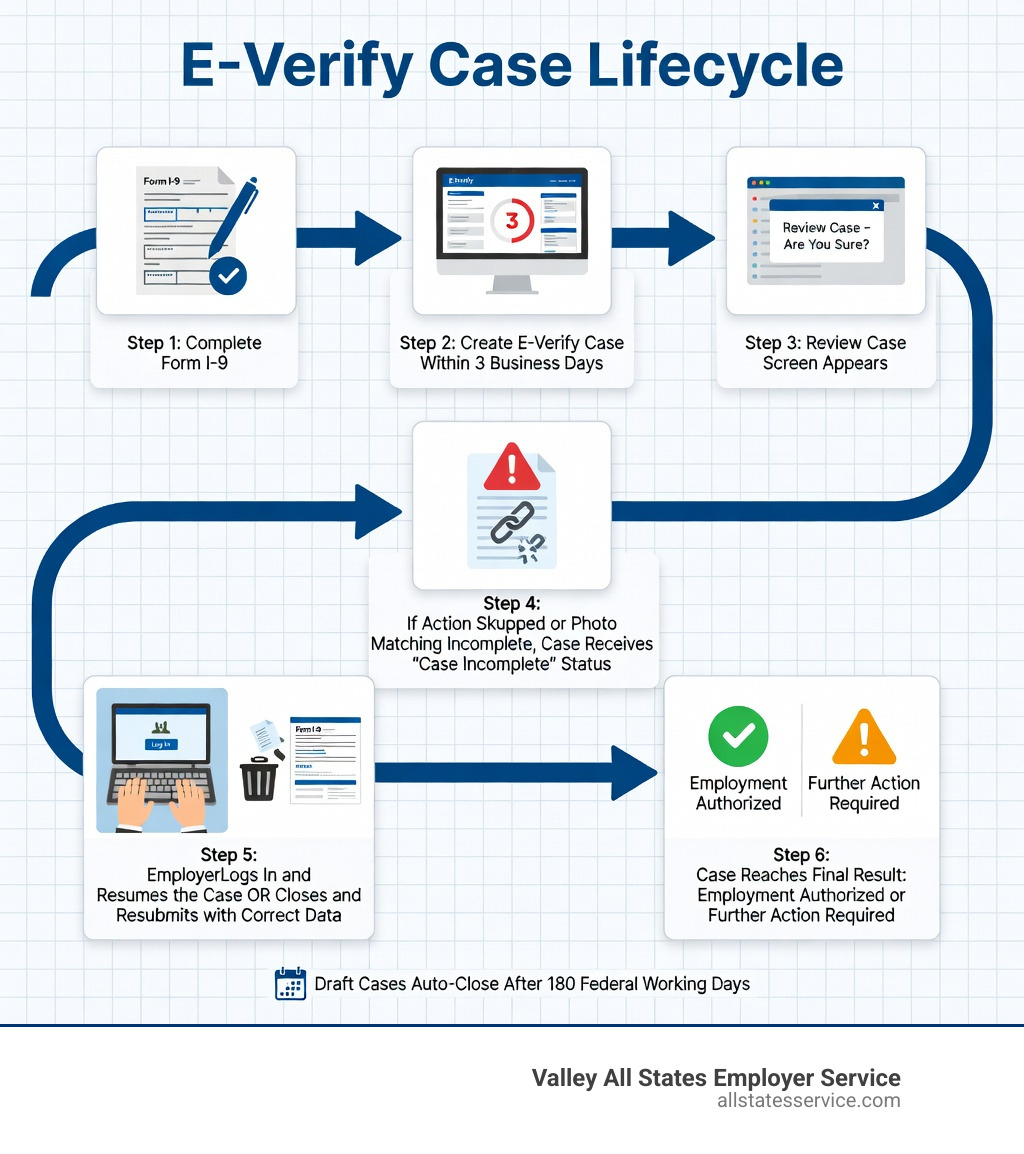
- What it means: You did not complete a required step, usually the “Review Case – Are You Sure?” alert or the photo matching process.
- How to fix it: Log into E-Verify, find the case under “View Cases,” and pick up where you left off.
- If the data is wrong: Close the case, select the appropriate closure reason, and create a new case with the correct information from Form I-9.
- Draft cases expire: If left untouched, draft cases are automatically closed after 180 federal government working days.
For HR managers juggling new hires, paperwork, and compliance deadlines, an incomplete E-Verify case can feel like one more thing falling through the cracks. The good news is that most incomplete cases are simple to resolve once you know where to look and what steps to take.
This guide walks you through exactly what causes this status, how to fix it, and how to prevent it from happening again.
Understanding the e verify case incomplete Status
When we talk about an e verify case incomplete status, we are referring to a specific state in the E-Verify system where a case has been initiated but hasn’t reached a final result. Think of it like a “saved draft” in your email, except this draft has legal compliance implications.
This status usually pops up on your dashboard when a user navigates away from the Review Case screen or fails to complete the photo matching step. Because E-Verify is a real time system, it expects you to follow through every prompt until you see a clear e-verify-case-status such as “Employment Authorized.”
Why you received an e verify case incomplete notification
The most common reason for this alert is simply human error or a distraction in the office. You might be halfway through entering data when a phone rings or a meeting starts. If you close your browser or the system times out before you hit that final “Submit” button, the case remains in limbo.
Specifically, the “Review Case – Are You Sure?” alert is a frequent culprit. This screen appears when the information you entered doesn’t immediately match government records. It asks you to double check the details against the employee’s Form I-9. If you don’t confirm or correct the data on this screen, the system flags the case as incomplete. Similarly, if the employee presented a document that requires photo matching, like a U.S. Passport or Permanent Resident Card, and you don’t complete the visual comparison, the case cannot move forward.
The 180-day draft expiration rule
It is important to keep an eye on your e-verify-best-practices regarding draft cases. E-Verify does not let these sit forever. Any case left in a draft or incomplete status is automatically closed by the system after 180 federal government working days.
Federal government working days are Monday through Friday, excluding federal holidays. While 180 days sounds like a long time, letting a case auto-close can create a gap in your e-verify-i-9-compliance records. We always recommend resolving these cases as soon as you spot them to ensure your hiring records remain audit-ready.
Step-by-Step Guide to Resolve an e verify case incomplete Alert
If you have discovered an incomplete case, don’t panic. Resolving it is usually a straightforward process of finding the “lost” file and finishing the work.
- Log in to E-Verify: Use your credentials to Login to the portal.
- Access “View Cases”: From your main dashboard, navigate to the “Cases” menu and select “View Cases.”
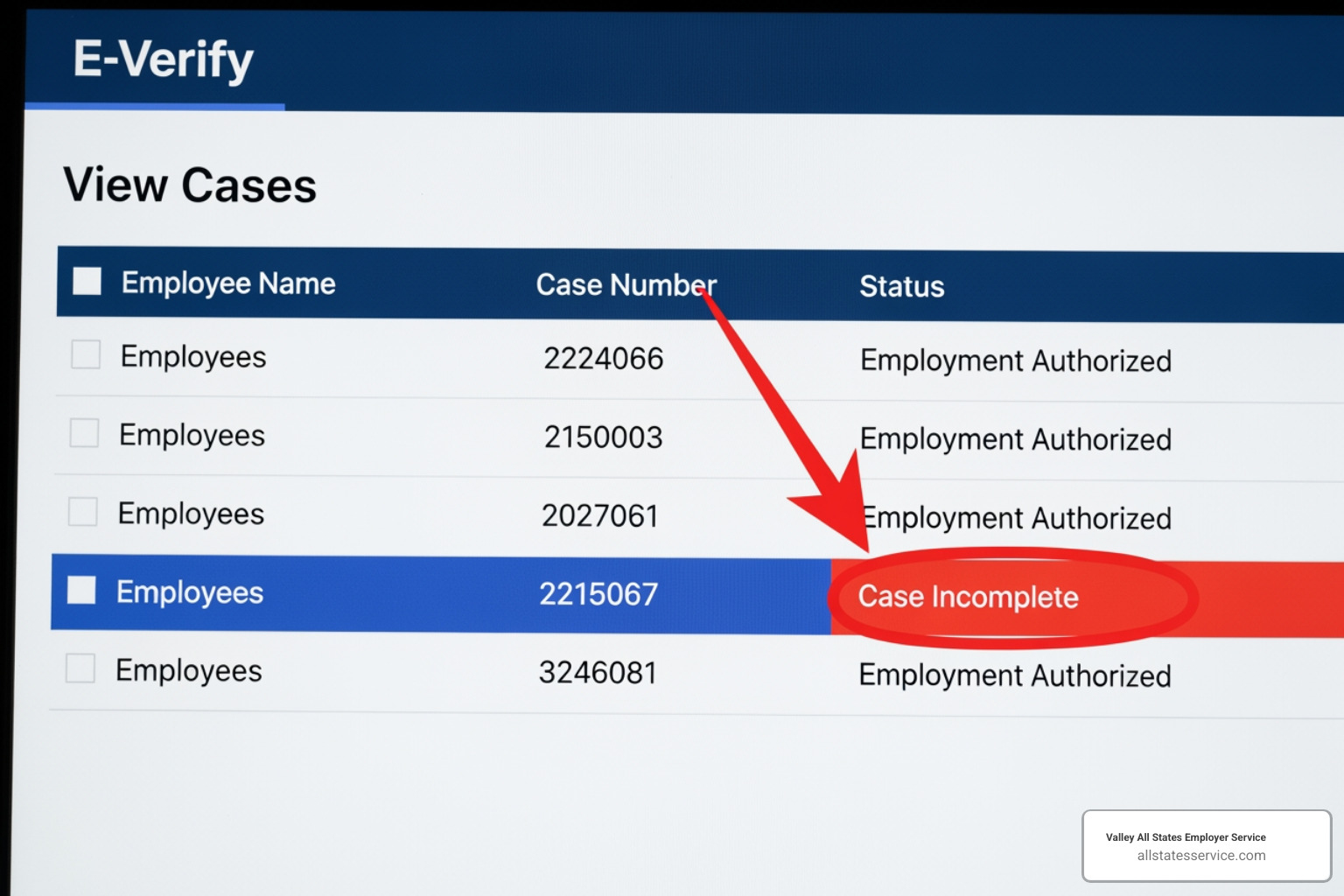
- Search for the Case: You can search by the employee’s name or the date the case was started. Look for the status labeled “Case Incomplete.”
- Select and Continue: Click on the case number to open it. The system will typically drop you right back at the screen where you stopped, such as the photo matching or the review alert.
- Verify and Submit: Review the data against the Form I-9. If everything is correct, proceed through the prompts until you receive a final result.
Using the Save and Exit feature
Sometimes you realize mid-process that you are missing a piece of information or need to double check a document. Instead of just closing your browser, which leads to the e verify case incomplete alert, use the “Save & Exit” button.
Clicking “Save & Exit” intentionally puts the case into a draft status. This allows you to pause the verification without triggering an error. You can find these later under “View/Search Cases” and resume whenever you have the necessary details. This is a great way to manage verification delays without losing the data you have already entered.
Correcting information before final submission
Accuracy is everything in E-Verify. Before you hit that final submit button, the Review Case screen gives you one last look at the data. If you notice a typo in the Social Security number or a misspelled last name, click the “Edit Case Details” button.
Correcting errors at this stage is much easier than trying to fix them after a case has been submitted and a mismatch has been issued. Always have the physical Form I-9 right next to you during this process to ensure a 1:1 match between the paper form and the digital entry.
Difference Between Close Case and Resubmit and e verify case incomplete
It is easy to get confused between a case that is “Incomplete” and one that requires you to “Close Case and Resubmit.” They sound similar, but they happen at different stages of the process.
| Feature | Case Incomplete | Close Case and Resubmit |
|---|---|---|
| When it happens | Before the case is fully submitted to DHS/SSA. | After submission, when processing cannot continue. |
| Primary Cause | User inaction, timeouts, or skipped photo matching. | Incorrect data (like expiration dates) that cannot be edited. |
| How to fix | Resume the existing case from the dashboard. | Close the case and start an entirely new one. |
| Employee Action | None required. | None required. |
Handling incorrect document expiration dates
One specific scenario that often confuses employers is the Error: Close Case and Resubmit result. This usually happens if you enter an incorrect expiration date for a U.S. Passport, Passport Card, or Driver’s License.
Unlike a e verify case incomplete status where you can just edit the details, once you submit a case with an invalid expiration date, the system locks that data. You must select the closure statement “The case is being closed because the data entered is incorrect,” close the case, and then create a new case with the correct date.
When to create a new case from scratch
You should only create a new case from scratch if the original case was closed due to incorrect information. If the case is simply “Incomplete,” you should always try to finish the existing case first. Creating duplicate cases for the same hire can lead to confusion and potential compliance flags during an audit.
If you do need to start over because of a tentative nonconfirmation caused by a data entry error, make sure you select the option “The information entered was not correct” when closing the old case. This tells the system why you are resubmitting, which helps maintain a clean audit trail.
Managing System Outages and Government Shutdowns
Sometimes, an incomplete case isn’t your fault at all. System outages or federal government shutdowns can take E-Verify offline entirely. During these times, the system might go dark, leaving you unable to create or finish cases.
Compliance during E-Verify downtime
When E-Verify is unavailable, your primary responsibility is to maintain Form I-9 compliance. E-Verify is a supplement to the I-9, not a replacement.
During a shutdown, the “three-day rule” for creating E-Verify cases is suspended. However, you must still complete Section 1 of the Form I-9 by the employee’s first day of work and Section 2 within three business days. We recommend keeping a log of all hires made during the outage so you can process them quickly once the system is back online.
Actions to take once the system resumes
Once the government officially restores access to E-Verify, a grace period is typically announced. You will need to:
- Create cases for new hires: Process everyone hired during the shutdown.
- Select the delay reason: When prompted for why the case is late, select “Other” and type “Government shutdown” or “System unavailable.”
- Resolve TNCs: If an employee had a pending Tentative Nonconfirmation (TNC), the countdown for them to take action usually restarts. You may need to print a new Referral Date Confirmation notice with an updated deadline.
Frequently Asked Questions about E-Verify Statuses
What should an employee do if a case is incomplete?
In most cases, the employee does not need to do anything for an e verify case incomplete status. This is an administrative issue for the employer to fix. However, if the case results in a mismatch once you finish it, you must provide the employee with a Further Action Notice.
Employees can also use the myE-Verify case tracker to follow their status if they have their 15-digit case number. For more details on employee rights, check out our e-verify-employees-complete-guide.
Can I edit a case after clicking submit?
Generally, no. Once you hit “Submit,” the data is sent to DHS and SSA for verification. If you realize you made a mistake after submission, you will likely have to wait for the result. If it comes back as a TNC or an error, you can then follow the steps to close and resubmit. This highlights why the Review Case screen is so critical.
How do I track a case without a myE-Verify account?
Employees do not need a myE-Verify account to check their status. They simply need to:
- Go to the E-Verify Case Tracker.
- Enter the 15-digit E-Verify case number found on their Further Action Notice.
- The tracker will show one of eight possible responses, such as “Employment Authorized” or “Case Referred to SSA.”
Streamlining Your Employment Eligibility Process
Managing E-Verify can be a heavy administrative burden, especially when you encounter alerts like e verify case incomplete or have to navigate system shutdowns. One small mistake in data entry can lead to hours of extra work and potential compliance risks.
At Valley All States Employer Service, we provide expert, outsourced E-Verify workforce eligibility verification. We act as your impartial partner, handling the entire process from initial case creation to resolving complex mismatches. Our goal is to minimize errors and ensure your business stays fully compliant without the headache of manual case management.
Ready to simplify your hiring workflow? Learn more about our E-Verify services and let us take the compliance burden off your shoulders.