
E-Verify System Requirements: 5 Bare Essentials
Why E-Verify System Requirements Matter for Your Business
E-Verify system requirements are surprisingly simple. If you’re wondering what you need to get started, here’s the short answer:
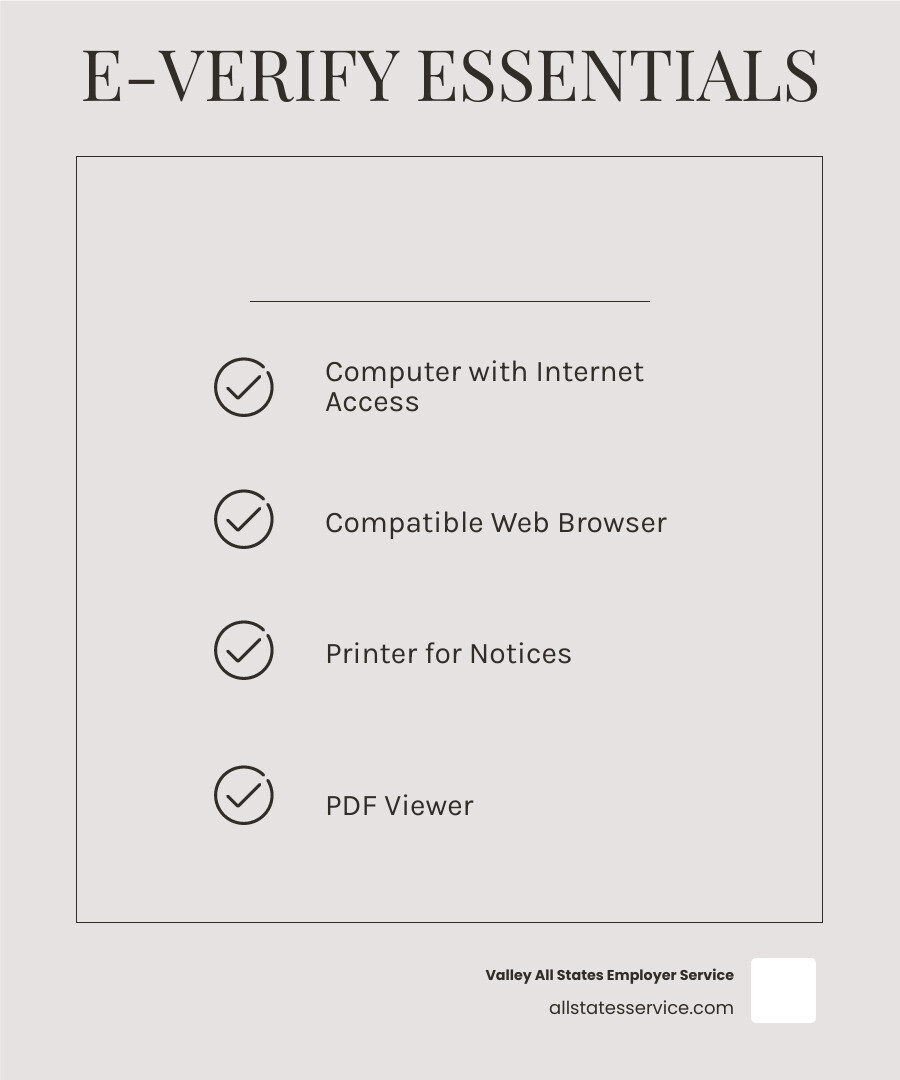
Basic E-Verify System Requirements:
- A computer with internet access
- One of four web browsers: Microsoft Edge, Google Chrome, Mozilla Firefox, or Safari
- A printer for official notices and records
- A PDF viewer (like free Adobe Acrobat Reader)
- That’s it
Good news for busy HR managers: E-Verify isn’t a complicated software installation. It’s a straightforward, internet-based system that works with tools you already have.
No expensive upgrades. No special hardware. No proprietary software licenses.
The system was designed by the U.S. Department of Homeland Security to be accessible to businesses of all sizes. Whether you run a small startup or manage HR for a mid-sized company, you can access E-Verify from a standard office setup.
Here’s what makes this even better: enrollment takes just minutes, and the verification process itself happens in seconds. The technical barriers are intentionally low because the government wants to make workforce eligibility verification easy for employers.
This guide walks you through exactly what you need, why each requirement exists, and how to set up your workspace for smooth E-Verify operations. We’ll also cover security considerations, user roles, and common questions that come up during setup.
Core Hardware Requirements: What You’ll Need on Your Desk
Let’s talk about what’s actually sitting on your desk. When it comes to E-Verify system requirements, you’ll be relieved to know there’s nothing fancy or expensive needed here.
You already have everything.
Seriously. E-Verify was designed to work with the standard office setup that most businesses already use. No specialized equipment. No expensive upgrades. Just the basics you’d find in any modern workspace.
Your computer is the foundation. Desktop or laptop, it doesn’t matter. Windows, Mac, it doesn’t matter. The system isn’t picky because it’s not doing anything complicated on your machine. You’re just accessing a website, not running heavy software. Think of it like checking your email or browsing any secure website. If your computer can handle that, you’re good to go.
Internet access is your lifeline to the system. E-Verify lives entirely online, so you need a connection you can count on. We’re not talking about blazing-fast fiber optic speeds here. What matters is reliability. You don’t want to be halfway through verifying a new hire when your internet decides to take a coffee break. A stable connection means you can access E-Verify whenever you need it, and since most verifications take just seconds, you won’t be waiting around.
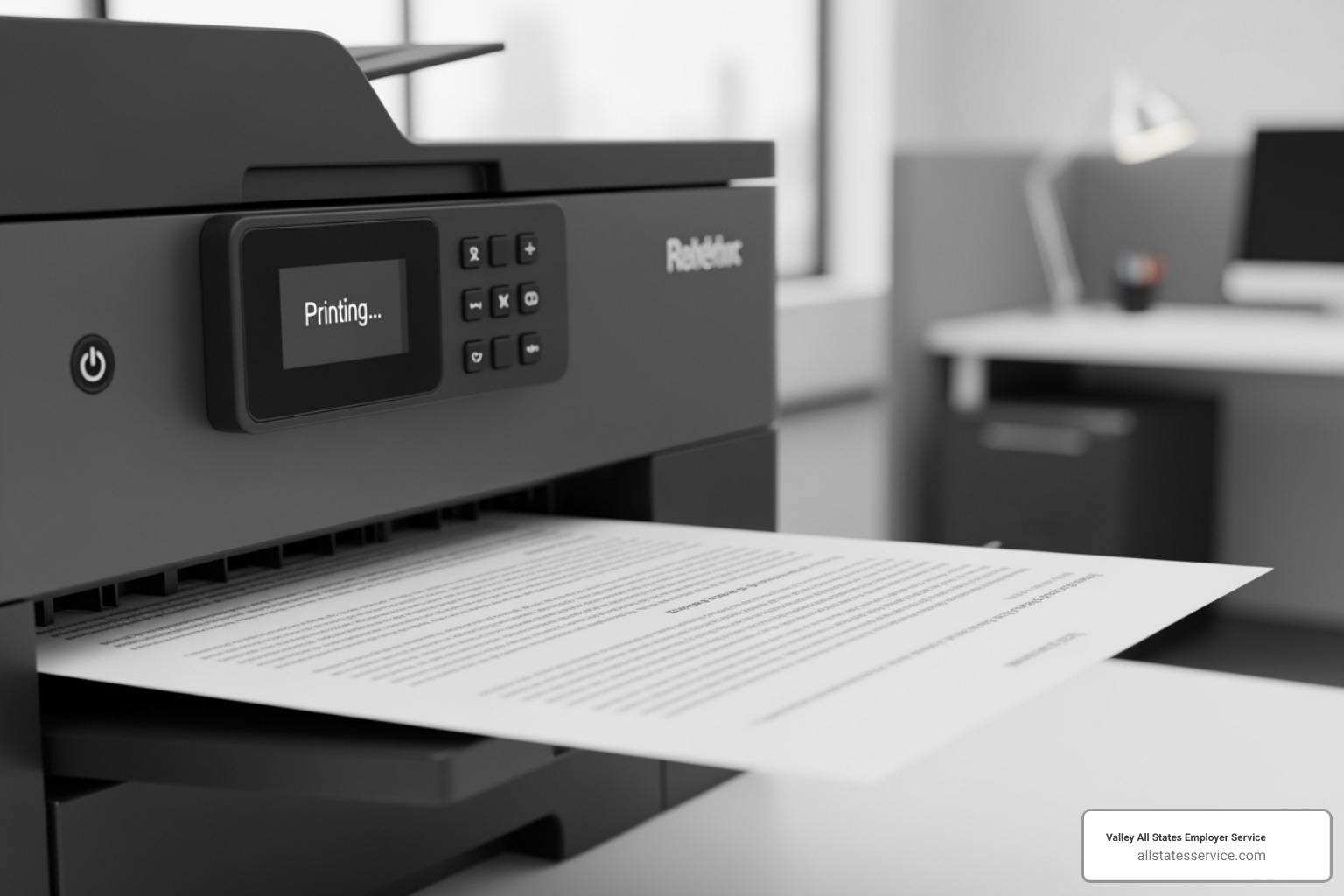
Here’s the one thing that surprises people: you absolutely need a printer. In an increasingly paperless world, this feels a bit old-school, right? But there’s a good reason for it. Certain notices must be printed and given directly to employees. It’s not optional, it’s required. These printed documents protect both you and your employees, ensuring everyone understands their rights and responsibilities.
Some employers also keep a scanner handy, though E-Verify doesn’t require one. It can be useful for digitizing Form I-9 documents or creating backup copies of paperwork, but it’s not part of the core E-Verify and I-9 requirements. Consider it a nice-to-have, not a must-have.
That’s your hardware checklist. Simple, straightforward, and probably already sitting on your desk right now.
Why a Printer is Necessary
You might be wondering why a printer matters in what’s supposed to be a digital system. Fair question.
The answer comes down to employee rights and legal compliance. When an E-Verify case results in a Tentative Nonconfirmation (TNC), you’re legally required to print and provide a “Further Action Notice” to your employee. This isn’t something you can just email or explain verbally. It has to be a physical document they can hold, read, and reference.
This notice tells your employee exactly what happened, why their information couldn’t be immediately verified, and what steps they can take to resolve the issue. It’s a critical part of their due process rights. Without it, you’re not just being unhelpful, you’re breaking the rules.
Document retention is another reason that printer stays busy. Yes, E-Verify tracks everything digitally on their end, but you need your own records too. Those printed notices get attached to the employee’s Form I-9, creating a complete paper trail. If an audit comes knocking, you’ll be glad you have those hard copies organized and ready.
There’s also something to be said for employee communication that happens face-to-face with a physical document. Handing someone a printed TNC notice ensures they actually receive the information. There’s no “it went to my spam folder” or “I didn’t see the email.” It’s direct, clear, and impossible to miss.
So while E-Verify eliminates a lot of paperwork, the printer remains essential for those specific, legally mandated moments. Think of it as your compliance safety net.
Essential Software and Browser Compatibility
Here’s something that might surprise you: E-Verify doesn’t require any special software downloads or installations. That’s right. No proprietary software to purchase, no complicated setup wizards, and no waiting for IT to install anything on your computer.
The entire system runs directly through your web browser, just like checking your email or shopping online. This web-based approach means you’re working with standard tools that are already sitting on your computer right now. For HR managers juggling tight budgets and even tighter schedules, this is genuinely good news.
The only software you’ll want to have ready is a PDF viewer. Think of this as your digital filing cabinet for E-Verify. The system provides documentation, guides, and those important Further Action Notices we talked about earlier, all in PDF format. If you don’t already have one, the free Adobe Acrobat Reader software works perfectly and takes just minutes to download.
It’s worth noting how E-Verify fits into your broader compliance picture. The system doesn’t replace Form I-9. Instead, it works alongside it, verifying the information you’ve already collected on that form. Understanding this relationship helps you see why having the right tools for both E-Verify and I-9 processes matters for keeping your compliance seamless.
The beauty of these simple E-Verify system requirements is that they remove technical barriers. You can focus on what actually matters: verifying your employees’ eligibility to work, not wrestling with software compatibility issues.
Compatible Web Browsers
Your web browser is essentially your front door to the E-Verify system. The good news? The platform plays nicely with all the major browsers you’re probably already using. E-Verify officially supports Microsoft Edge, Google Chrome, Mozilla Firefox, and Safari.
Whether you’re a Chrome devotee, a Firefox loyalist, or you stick with whatever came with your computer, you’re covered. This cross-browser compatibility means you won’t need to download or learn a new browser just for E-Verify.
One important habit to develop: keep your browser current with up-to-date versions. Those little update notifications that pop up aren’t just annoying reminders. They bring security improvements, fix bugs, and ensure websites like E-Verify display correctly. An outdated browser might work, but you could run into frustrating hiccups like slow loading times or display quirks that make your job harder than it needs to be.
Think of browser updates like changing the oil in your car. A little regular maintenance keeps everything running smoothly. Most modern browsers update automatically in the background, so you barely need to think about it. Just don’t ignore those restart reminders when they appear.
The simplicity here is intentional. The government designed E-Verify to work with tools businesses already have, removing any excuse that the technology is too complicated or expensive. Your E-Verify system requirements stay manageable, and you can get to work verifying employees without a second thought about technical compatibility.
Your Complete Checklist for E-Verify System Requirements
Let’s bring everything together. The E-Verify system requirements are remarkably straightforward, and that’s actually the best part. There are no surprise costs hiding around the corner, no demands for expensive equipment, and no complicated installations that require an IT specialist on speed dial.
The entire system was designed with one goal in mind: making employment eligibility verification accessible to every employer, regardless of size or technical expertise. Whether you’re running a small business from a home office or managing HR for a growing company, you can get started with tools you probably already have sitting on your desk.
Think of this as your final walkthrough before you start. We’ve broken down everything you need into two simple categories: the physical stuff and the digital stuff. Nothing more complicated than that.
Hardware and Connectivity: The Physical E-Verify System Requirements
On the hardware side, you need a standard desktop or laptop computer. We’re not talking about anything fancy here. Your current work computer, whether it’s three years old or three months old, will handle E-Verify just fine. The system doesn’t demand high-powered processors or massive amounts of memory. If your computer can browse the web and handle email, it can handle E-Verify.
Next up is a reliable internet connection. Notice we said reliable, not necessarily lightning fast. Since E-Verify lives entirely online, you need a connection that stays steady when you’re working. The actual verification process takes seconds, so speed isn’t really the issue. What matters is that your connection doesn’t drop mid-process, leaving you to start over or wondering if your case went through.
Finally, you absolutely must have access to a working printer for notices and records. This isn’t optional. When you need to print a “Further Action Notice” for an employee facing a Tentative Nonconfirmation, that printer becomes your most important compliance tool. You’re also building a paper trail that supports your digital verifications, and that requires actual paper. Keep your printer stocked with paper and ink, and you’re good to go.
Software and Browsers: The Digital E-Verify System Requirements
The software requirements are even simpler. You need an updated, compatible web browser, and you’ve got four excellent options: Microsoft Edge, Google Chrome, Mozilla Firefox, or Safari. Pick whichever one you prefer. The only catch is keeping it updated. Those browser updates you sometimes ignore? They matter here. Updated browsers run smoother, stay more secure, and work better with E-Verify’s web platform.
You’ll also need a PDF viewing program installed on your computer. E-Verify provides instructions, guides, and notices in PDF format, so you need a way to open and read them. If you don’t already have one, Adobe Acrobat Reader is free and works perfectly. Download it once, and you’re set.
Here’s the best part: there’s no special paid software required. Zero. You won’t be asked to purchase licenses, subscribe to services, or install proprietary programs. E-Verify runs entirely through your web browser using tools that are either already on your computer or available for free download.
That’s genuinely all you need. Meeting these E-Verify system requirements means you’re ready to start verifying employees today, not weeks from now after expensive upgrades or complicated installations. The simplicity is intentional, and it works in your favor.
Security, Access, and User Roles
When you’re working with E-Verify system requirements, there’s more to consider than just hardware and browsers. You’ll be handling some of your employees’ most sensitive information, and that responsibility deserves serious attention. The good news? The Department of Homeland Security built E-Verify with strong security from the ground up, and understanding these protections is part of setting yourself up for success.
First things first: always double-check that you’re on the real E-Verify website. You’re looking for a secure .gov website, which tells you it’s genuinely a U.S. government site. That “.gov” in the web address is your first reassurance. You should also see HTTPS protocol in action, usually shown by a little padlock icon next to the URL in your browser. That padlock means everything you send and receive is encrypted, keeping prying eyes away from your data. If you don’t see these security markers, stop. Don’t enter anything. You’re not on the right site.
Getting into E-Verify happens through Login.gov authentication. If you haven’t used Login.gov before, it’s the government’s single sign-on service for various federal platforms, including E-Verify. You’ll set up an account with a strong password, and they’ll often ask you to enable multi-factor authentication. Yes, it’s an extra step, but it’s worth it. That text message code or authenticator app adds a powerful layer of protection against unauthorized access.
Once you’re in, treating your login credentials with care is non-negotiable. Password protection is your first defense, so never share your login information with anyone who shouldn’t have it. Beyond that, your role in protecting PII (Personally Identifiable Information) extends beyond the digital system. You’re working with Social Security numbers, birth dates, and other details that must be handled carefully. That means discussing results privately with employees, securing printed documents, and following your company’s data protection policies to the letter.
For a deeper dive into managing all aspects of Form I-9 and E-Verify compliance with security front and center, our I-9 and E-Verify Compliance Guide walks you through best practices for keeping sensitive information safe throughout the entire verification process.
Do Different User Roles Have Different Requirements?
Here’s a question we hear often: do different user roles need different equipment or software to use E-Verify? The short answer is no. Whether you’re set up as a Program Administrator or a General User, the technical requirements don’t change. Everyone needs the same basic setup: a computer, internet connection, compatible browser, and PDF viewer. The E-Verify platform doesn’t care about your role when it comes to system access.
What does change are the permissions and responsibilities each role carries. A Program Administrator typically holds the keys to the kingdom. They manage the company profile, add or remove users, and serve as the main point of contact with E-Verify. They’re responsible for ensuring everyone in the organization follows proper procedures and handles data correctly. It’s a role with significant data handling responsibilities and oversight.
A General User, by contrast, focuses on the everyday work of running cases. They enter employee information, submit verifications, and communicate results. They can’t usually change company settings or manage other users, but they’re still responsible for accurate data entry and maintaining confidentiality when dealing with employee information.
So while the E-Verify system requirements stay constant regardless of who’s logging in, the level of authority and the scope of actions each person can take are quite different. This structure lets you organize access in a way that makes sense for your business, without worrying about different technical setups for different team members.
Frequently Asked Questions about E-Verify Requirements
We know that even with simple instructions, questions can pop up. Here are some of the most common inquiries we hear about E-Verify system requirements, answered clearly to help you steer the process with confidence.
Do I need a high-speed internet connection for E-Verify?
No, you don’t necessarily need a lightning-fast, high-speed internet connection for E-Verify. As an internet-based application with relatively simple system requirements, E-Verify is designed to be efficient even on standard broadband connections. The system delivers results quickly, often within 3-5 seconds.
What’s more important than raw speed is the reliability over speed. A consistent and stable internet connection is crucial to avoid interruptions during the verification process. Imagine getting a Tentative Nonconfirmation (TNC) and needing to print the Further Action Notice, only for your internet to cut out. A reliable connection ensures you can access the system whenever needed, submit cases without delays, and retrieve important documents or results efficiently. So, focus on stability rather than needing the fastest gigabit plan available.
Are the system requirements different for Mac vs. PC users?
One of the great advantages of E-Verify being a web-based system is its inherent cross-platform compatibility. This means the E-Verify system requirements are not different for Mac users compared to PC users. Whether you’re operating on macOS, Windows, or even some Linux distributions, as long as you have a compatible web browser and internet access, you’re good to go.
The system is designed to function seamlessly across various operating systems, relying on the browser interface rather than specific underlying software. For Mac users, Safari is a fully supported browser, along with Google Chrome and Mozilla Firefox, which are also available for both Mac and PC. PC users can use Microsoft Edge, Chrome, or Firefox. The key is simply using one of the approved and updated browsers, regardless of your computer’s brand or operating system.
Should I use a mobile device to access E-Verify?
While E-Verify is accessible via a web browser, and technically you could open the website on a mobile device, it is generally recommended to complete the enrollment process on a desktop computer. This recommendation extends to the day-to-day use for case creation as well.
Here’s why: the E-Verify portal, especially during initial enrollment, is optimized for a larger screen and a traditional desktop environment. The enrollment process often needs to be completed in a single web session, and navigating complex forms and ensuring accurate data entry can be more challenging on a smaller mobile screen. Using a desktop or laptop provides a better user experience, reducing the chances of errors or incomplete steps.
For routine case management, while a mobile device might allow you to check a status, creating new cases or handling TNCs often involves more detailed input and document management that is simply more efficient and less prone to mistakes on a larger screen with a physical keyboard and mouse. So, for optimal efficiency and accuracy, stick to your desktop or laptop for E-Verify operations.
Simplify Your Compliance Process
You’ve made it through the technical details, and here’s the takeaway: the E-Verify system requirements are refreshingly straightforward. No expensive software packages. No specialized hardware. No complicated installations that require an IT degree to figure out. Just a computer, internet access, a printer, a modern browser, and a free PDF viewer. That’s genuinely all you need to meet your employment verification obligations.
This simplicity is intentional. The system was designed to be accessible, removing technical barriers so you can focus on what actually matters: building a compliant, legal workforce. When the technology gets out of your way, you can dedicate your energy to your people and your business operations, not troubleshooting software problems or hunting down obscure equipment.
Of course, having the right equipment is just the starting point. The real work lies in understanding the process itself, staying current with changing regulations, managing the inevitable Tentative Nonconfirmations, and ensuring every verification is completed correctly and on time. Even with minimal technical requirements, E-Verify and I-9 compliance demands attention to detail, proper training, and consistent execution.
That’s where Valley All States Employer Service comes in. We specialize in taking this entire process off your plate. Our team provides outsourced E-Verify workforce eligibility verification that’s expert, impartial, and efficient. We minimize errors, reduce your administrative burden, and give you confidence that your compliance is handled correctly every single time. You maintain the simple setup on your end, and we handle the complexities of the verification process itself.
Whether you’re managing a handful of new hires or coordinating verifications across multiple locations, we’re here to make it seamless. You shouldn’t have to become an E-Verify expert to stay compliant. That’s our job.
Want to dive deeper into the fundamentals? Check out our Form I9 Ultimate Guide for comprehensive insights into the foundation of employment eligibility verification.
Ready to simplify your employment verification process and ensure flawless compliance? Contact our team today to learn how we can help you master E-Verify and I-9 compliance with ease.