
What HR Managers Need to Know About E-Verify Form Processing
E-Verify form processing is the step-by-step workflow employers follow to electronically confirm a new hire’s eligibility to work in the United States, starting with Form I-9 and ending with a case result from government records.
Here’s a quick overview of how it works:
- Employee completes Form I-9 Section 1 on or before their first day of work
- Employer completes Form I-9 Section 2 within three business days of the hire date
- Employer creates an E-Verify case using the Form I-9 data, no later than the third business day after the employee starts work for pay
- E-Verify checks the data against Social Security Administration (SSA) and Department of Homeland Security (DHS) records
- A case result is returned, which is either “Employment Authorized” or one of several review statuses that require follow-up action
If you’re managing hiring compliance, you know the pressure. New employees start, paperwork piles up, and one missed step can mean a compliance violation. Form I-9 has been the legal backbone of employment eligibility verification since 1986, and E-Verify is the electronic system that builds on top of it.
But they’re not the same thing, and they don’t work the same way.
Most employers know they need Form I-9. Fewer understand exactly how E-Verify fits in, what extra rules apply, and what to do when something goes wrong. This guide breaks it all down in plain language, so your team can process verifications correctly, consistently, and without the guesswork.

Key terms for e-verify form processing:
The Foundation of E-Verify and Form I-9
To understand how e-verify form processing works, we first have to look at the relationship between the paper (or digital) Form I-9 and the web-based E-Verify system. While Form I-9 is mandatory for every single employer in the U.S., E-Verify is a voluntary program for most businesses, though it is mandatory for federal contractors and employers in certain states.
Think of Form I-9 as the “source of truth.” You cannot run an E-Verify case without a completed Form I-9. The system takes the information you’ve already collected and compares it against millions of government records to ensure everything matches up.
| Feature | Standard Form I-9 | E-Verify Requirements |
|---|---|---|
| Social Security Number | Optional (unless choosing List C) | Mandatory |
| List B Identity Document | Photo not required | Must contain a photo |
| Document Photocopies | Optional (usually) | Required for specific documents |
| Reverification | Required for expired auth | Prohibited |
| System Check | Manual review only | Automated SSA/DHS check |
How E-Verify Complements Form I-9
E-Verify acts as a web-based companion that adds a layer of security to your hiring process. When we talk about I-9 form processing, we are looking at the identity and work authorization of an individual. E-Verify takes that a step further by performing electronic confirmation. It matches the data against the Social Security Administration (SSA) database and Department of Homeland Security (DHS) records to catch identity fraud or clerical errors that a human eye might miss. You can find more details on the Form I-9 Overview page.
Key Differences in E-Verify Requirements
There are a few “gotchas” when you move from standard I-9s to E-Verify. First, the Social Security Number (SSN) is no longer optional; the employee must provide it. Second, if the employee presents a List B document (like a driver’s license), it must have a photo. If they have a religious objection to photos, you’ll need to contact the E-Verify center directly at 888-464-4218 for guidance. Finally, E-Verify participants have stricter document retention rules, which we will dig into later.
Step-by-Step Guide to Creating a Case
Timing is everything in compliance. The “three-day rule” is the golden rule of e-verify form processing. You must create the E-Verify case no later than the third business day after the employee starts work for pay. If they start on Monday, you have until Thursday to get that case into the system. For a deeper dive into these timelines, check out our guide on I-9 processing times and procedures.
Gathering Information for E-Verify Form Processing
Before you log in, make sure you have the completed Form I-9 in front of you. You will need:
- The employee’s full legal name and date of birth.
- Their Social Security Number.
- Their citizenship or immigration status (from Section 1).
- The document numbers and expiration dates from the ID they presented (from Section 2).
- Their email address (if they provided one on the form, you must enter it).
Handling Missing Social Security Numbers
What happens if a new hire hasn’t received their SSN yet? This is common with new immigrants. You shouldn’t turn them away! You are allowed to let them work, but you must wait to create the E-Verify case. Simply write a note on their Form I-9 explaining the situation and keep it on file. As soon as the SSN arrives, create the case immediately. Because this will likely be past the three-day deadline, the system will ask for a reason for the delay, you can simply select “Awaiting Social Security Number” from the dropdown menu.
Mastering E-Verify Form Processing for Your Business
Once you have your data ready, it’s time to navigate the portal. The Verification Process Guide is a great resource, but the actual workflow is fairly intuitive once you’ve done it a few times. You’ll log in, select “Create New Case,” and follow the prompts to enter the information from the I-9.
Common Mistakes in E-Verify Form Processing
We see the same mistakes over and over, and most are easily avoidable:
- Typographical Errors: A transposed digit in an SSN or a misspelled last name will trigger a “Mismatch” (Tentative Nonconfirmation). Double-check every entry!
- Late Submissions: Forgetting to enter the case within three days.
- Pre-screening: You cannot use E-Verify to check someone’s status before you hire them. It is only for people who have already accepted a job offer.
- Selective Verification: You can’t just “E-Verify” people who “look” like they might not be citizens. You must run every single new hire through the system to avoid discrimination claims.
Rules for E-Verify Enrollment and Setup
Ready to start? You can Enroll in E-Verify online. You’ll need your company’s basic info, your North American Industry Classification System (NAICS) code, and you’ll need to designate a “Signatory” (someone who can legally bind the company) and a “Program Administrator” (the person who manages the account). That enrollment must be completed in one sitting, so have your EIN and hiring site addresses ready!
Navigating Photo Matching and Document Rules
One of the coolest (and most important) features of e-verify form processing is Photo Matching. This is designed to ensure the document the employee handed you isn’t a high-quality forgery with a swapped photo.
How Photo Matching Works
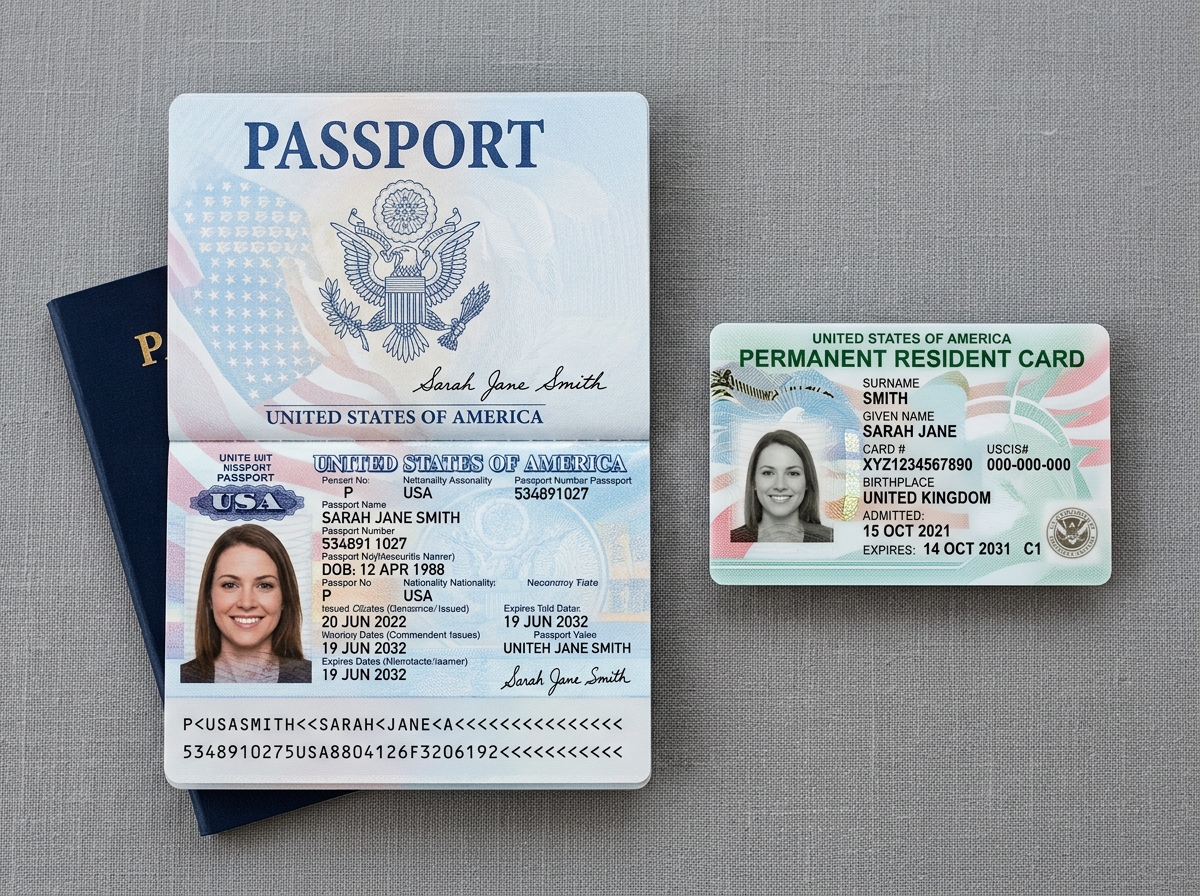
If an employee presents a U.S. Passport, Passport Card, Permanent Resident Card (Form I-551), or Employment Authorization Document (Form I-766), the system will display the photo that the government has on file for that specific document. You must compare the photo on the screen to the photo on the physical document the employee gave you. They should be identical (ignoring minor color variations). If they don’t match, it could be a sign of document fraud. You can learn more about List B Photo Requirements here.
Retention and Photocopy Requirements
Standard I-9 rules say you can keep copies of documents, but E-Verify rules say you must keep copies of certain ones. If the employee presents any of the photo-matching documents mentioned above (Passports, Green Cards, EADs), you must make a copy and keep it with their Form I-9. This allows for audits later to prove you did the photo matching correctly. For more tips on this, see our article on error-free I-9 processing.
Managing Case Results and Mismatches
Most cases result in “Employment Authorized” within seconds. But occasionally, you’ll see something else.
Resolving a Tentative Nonconfirmation (Mismatch)
A Tentative Nonconfirmation (TNC), also called a Mismatch, means the data didn’t immediately match government records. This does not mean the employee is not authorized to work. It could be a name change, a typo, or an outdated record.
Here is what we do when a Mismatch occurs:
- Notify the employee privately. Give them the “Further Action Notice” generated by the system.
- The employee decides whether to contest the result.
- If they contest, you give them a “Referral Date Confirmation” and they have 8 federal workdays to contact the SSA or DHS.
- They continue working while the case is being resolved. You cannot fire or discipline them during this period.
Prohibited Actions and Anti-Discrimination
Fairness is the name of the game. You cannot take any “adverse action” (cutting hours, delaying training, or termination) just because someone got a Mismatch. Only if the result turns into a “Final Nonconfirmation” are you required to take action. Treating employees differently based on their citizenship status or national origin during the E-Verify process can lead to massive fines and legal trouble.
Advanced Compliance for Modern Workforces
The world of work has changed, and so has verification. Since August 2023, the DHS has allowed an Alternative Procedure for Remote Document Examination. This is only available to employers in good standing who are enrolled in E-Verify. It allows you to examine documents via a live video call instead of in person, provided you retain copies of those documents.
E-Verify for Federal Contractors
If your business has a federal contract with the “FAR E-Verify clause,” the rules get even stricter. You may be required to verify not just new hires, but also existing employees assigned to the contract—or even your entire workforce. We recommend checking the E-Verify Supplemental Guide for Federal Contractors for the specifics.
Recent Updates and E-Verify+
The government recently introduced E-Verify+, a new service designed to streamline the process even further. It allows employees to create a “myUSCIS” account and enter their own data, which then transfers to the employer. We are also seeing new E-Verify employer agents helping businesses manage these updates, including handling new EAD extensions and Status Change Reports.
Frequently Asked Questions about E-Verify Form Processing
Can I use E-Verify to screen job applicants?
No! Using E-Verify for pre-screening is a major violation. You can only create a case after an applicant has accepted a job offer and completed the Form I-9.
What happens if I miss the three-day deadline?
The system will ask you for a reason. You’ll select a reason from a dropdown menu (like “Technical Problems” or “Administrative Error”). While one late case isn’t the end of the world, a pattern of late submissions can trigger an audit.
Do I need to keep copies of all documents?
For E-Verify, you only must keep copies of the photo-matching documents (Passports, Green Cards, EADs). However, many employers find it easier to keep copies of all documents presented to ensure consistency.
Final Thoughts on Staying Compliant
Navigating the intricacies of e-verify form processing doesn’t have to be a headache for your HR team. While the rules are strict, they are designed to protect both your business and your employees.
At Valley All States Employer Service, we specialize in taking this administrative burden off your plate. We provide expert, impartial, and efficient E-Verify workforce eligibility verification for employers across the United States. By outsourcing your verification to us, you minimize the risk of costly errors and ensure your business stays 100% compliant with the latest federal regulations.
Ready to simplify compliance? Contact our team for E-Verify employment verification today.