
Real-Time Eligibility Confirmation and the Art of Error Correction
When E-Verify Gets It Wrong: What HR Teams Need to Know
E-Verify error correction is something every HR manager will face at some point, and knowing the right steps can save you from serious compliance headaches.
Here’s a quick overview of how to fix the most common E-Verify errors:
| Situation | What To Do |
|---|---|
| Error caught before submitting | Use “Edit Case Details” to fix it on the Review Case screen |
| Wrong first day of employment (submitted) | Note the correction on the Case Details page or Form I-9, do not create a new case |
| Invalid document expiration date | Close the case, select “data entered is incorrect,” create a new case |
| TNC caused by employer entry error | Select “information entered was not correct,” close the case, create a new case |
| Case created under wrong employer account | Attach a note to Form I-9, contact the E-Verify Contact Center |
| System outage (e.g., government shutdown) | Track hires, submit cases when system is back, select “Other” as delay reason |
E-Verify works by comparing information from an employee’s Form I-9 against records held by the Department of Homeland Security (DHS) and the Social Security Administration (SSA). When that information doesn’t line up, either because of a typo, a wrong date, or an outdated government record, the system flags it.
The problem? Most HR teams don’t realize there are different correction procedures depending on when and how the error occurred. Fixing a mistake before you hit submit is completely different from handling a case that’s already triggered a Tentative Nonconfirmation (TNC).
And getting it wrong, or ignoring the error entirely, can put your business at real compliance risk.
This guide walks you through every major error scenario, step by step, so you can handle corrections with confidence.
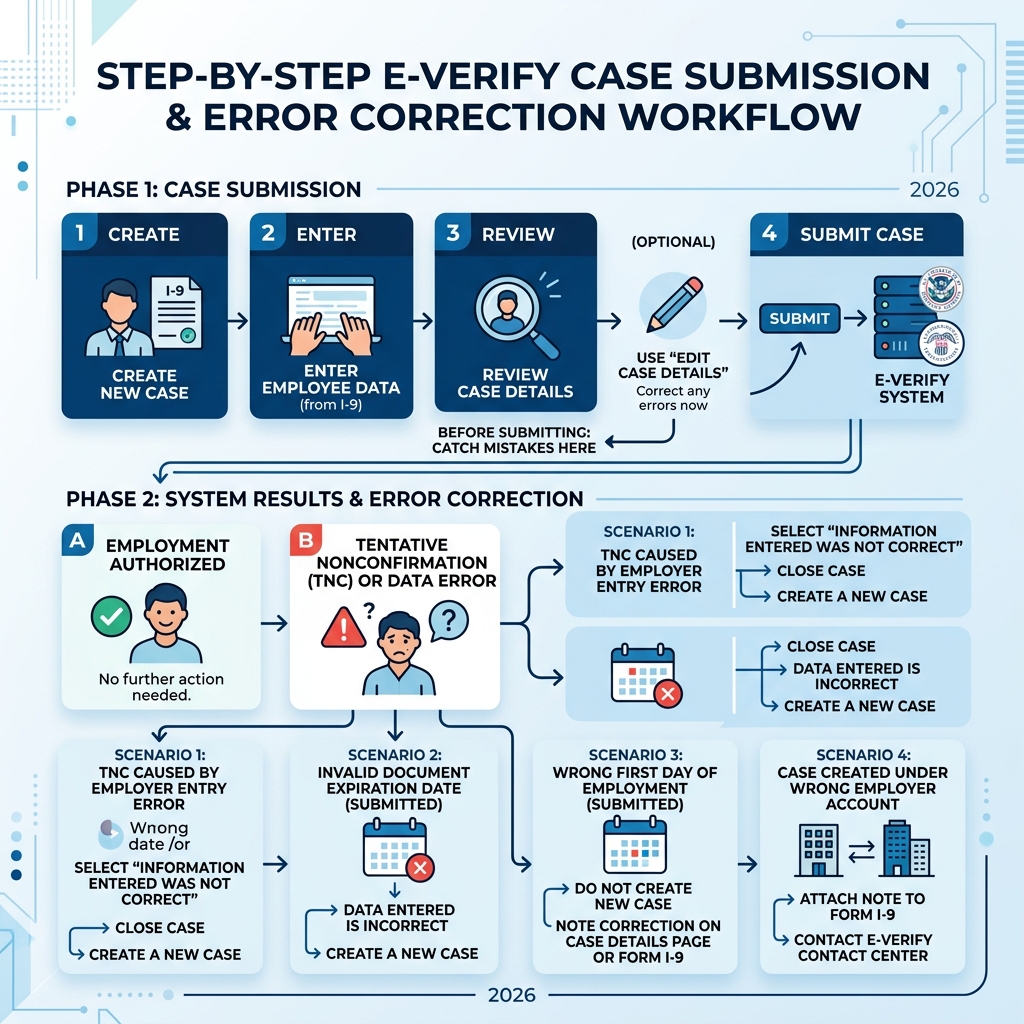
Catching Mistakes Before You Submit
The easiest way to handle an error is to catch it before the data ever reaches the government databases. When we are entering information into the system, the dashboard provides a few safety nets. If you spot a typo while typing, you can simply backspace, but if you have moved forward to the review screen, look for the “Edit Case Details” button.

If you realize you are missing a piece of information or need to double-check the physical Form I-9, use the “Save & Exit” feature. This allows us to pause the process without losing the work we have already done. You can later find these drafts by checking your E-Verify Case Status under the “View/Search Cases” section.
Consistency is the goal here. We always recommend a final “eyes-on” review of Section 1 and Section 2 of the Form I-9 against the E-Verify entry screen. A simple transposition of numbers in a Social Security number or a misspelled last name are the primary culprits for unnecessary mismatches. By taking an extra sixty seconds to review before clicking submit, we eliminate the need for complex E-Verify error correction later.
Essential Steps for E-Verify Error Correction After Submission
Sometimes, the “Submit” button is clicked before a mistake is noticed. If the system cannot immediately match the records, it might present a “Review Case – Are You Sure?” screen. This is a vital alert. It is the system’s way of saying, “This does not look right, please check again.” At this stage, you can still correct and confirm the information without triggering a formal mismatch.
However, if the case moves forward and results in Tentative Nonconfirmations (Mismatches), the process becomes more formal. A TNC does not necessarily mean the employee is unauthorized to work, it just means there is a data gap. If we realize the TNC was caused by our own data entry error, we must follow a specific path:
- Select the option stating “The information entered was not correct.”
- Close the case immediately.
- Start a brand new case with the accurate information.
This ensures the E-Verify Tentative Nonconfirmation is resolved correctly in the system’s eyes. If the error is not on our end, the case may require a DHS manual review or an SSA referral, which usually resolves within 24 to 72 hours.
Solving Specific Data Entry Blunders
Not all errors are created equal. Some require a new case, while others simply require a paper trail. Knowing which is which is the “art” of E-Verify error correction.
Correcting the First Day of Employment in E-Verify
Entering the wrong start date is one of the most frequent slip-ups. If the case is already submitted and you realize the first day of employment was recorded incorrectly, the official guidance is surprising: Do not create a new case.
Instead, we should maintain the audit trail on the existing documents. If you have printed the E-Verify Case Details page, write the correct date on the printout, then sign and date your note. On the Form I-9 itself, if you wrote the case number down, add a brief explanation of the date error next to it, then initial and date that correction. For a deeper dive into these nuances, our E-Verify Program Complete Guide offers comprehensive workflows.
E-Verify Error Correction for Invalid Document Dates
When it comes to document expiration dates, the system is less flexible. If you enter an incorrect expiration date for a U.S. Passport, Passport Card, or Driver’s License, you will often see an error message.
According to the official FAQ on how to correct a case with invalid information, you cannot simply edit a submitted document date. You must close the case using the closure statement “The case is being closed because the data entered is incorrect.” Once closed, you are authorized to create a new case using the correct expiration date.
Handling Cases Under the Wrong Employer Account
In larger organizations or those using an E-Verify Employer Agent, a program administrator might accidentally run a case under the wrong subsidiary or account.
If the case is already closed, do not try to run it again under the right account. Instead, attach a signed and dated memo to the employee’s Form I-9 explaining that the verification was performed under the wrong account number. We also recommend contacting the E-Verify Contact Center to put the error on record. However, if the case is still in TNC status, you should close it, indicating the employee will not take action, and then restart the case under the correct employer profile.
Navigating System Outages and Technical Glitches
Technical issues aren’t always the employer’s fault. System outages or government shutdowns can “freeze” the platform, leaving us unable to meet the typical three-day filing deadline.
When the system returns to service, as seen in historical events like when E-Verify came back online after a shutdown, there is usually a grace period. When creating cases for employees hired during the downtime, you should:
- Use the actual hire date from the Form I-9.
- Select “Other” when asked for the reason for the delay.
- Type “E-Verify not available” or “System outage” in the comments box.
This provides a clear explanation for auditors as to why the three-day rule was not met. We must remain proactive during these times by continuing to complete Paper I-9s on schedule, as E-Verify is a supplement to, not a replacement for, the I-9 process.
Employee Responsibilities and Record Updates
Sometimes the error lives within the government’s own databases. An employee might have changed their name after marriage but never updated the SSA, or there could be a mistake in their DHS immigration records.
When a TNC occurs, we provide the employee with a Further Action Notice. If they choose to contest the finding, they may need to visit an SSA office or contact DHS. The Fact Sheet: How to Correct Your Records with E-Verify is a great resource to hand to employees in this situation.
Employees can also request a Privacy Act amendment to fix long-standing errors in their records. We always tell our clients: Don’t Panic Over a Mismatch and Resolve Your E-Verify Case Today by encouraging the employee to take these corrective steps. Once the government record is fixed, future E-Verify checks will go through smoothly.
Frequently Asked Questions about E-Verify Errors
What is the ‘Review and Update Employee Data’ result?
This result occurs when the SSA finds a discrepancy that looks like a simple typo. It is essentially the system giving us a second chance. When this happens, we must review the Form I-9 with the employee to ensure Section 1 is accurate. If a mistake is found, we correct the I-9, update the data in the E-Verify case, and resubmit it. This is a great time to perform an E-Verify Self-Audit of your recent filings to ensure similar typos aren’t becoming a pattern.
Can I create a new case after closing one with incorrect information?
Yes, but only under specific circumstances. You should create a new case if the previous one was closed because of incorrect data entry that led to a TNC or if an invalid document date was used. You should not create a new case for a wrong start date or if the case was already “Employment Authorized.” Creating duplicate cases for the same employee without a valid correction reason can flag your account for misuse during Auditing I-9 Forms.
How do I document E-Verify error correction for an audit?
Documentation is your best defense. Every time you make a correction, you should:
- Attach a note to the Form I-9.
- Include the date of the correction and the signature of the person making it.
- Keep copies of any “Case Details” pages that show the error and the subsequent resolution.
- Download and store your Historic Records Reports annually.
If you are unsure about your current files, our I-9 Audit Services can help identify gaps before a government auditor does.
Maintaining Compliance with Expert Support
Navigating the maze of E-Verify error correction can be overwhelming, especially for growing businesses. At Valley All States Employer Service, we specialize in taking that weight off your shoulders. As an expert E-Verify Employer Agent, we handle the processing, monitor for errors, and guide you through the resolution of mismatches with an impartial and efficient approach.
Our goal is to minimize your administrative burden while ensuring your workforce eligibility remains beyond reproach. Whether you are looking for a partner to manage your daily verifications or need guidance on the latest regulations in our E-Verify Employer Agent Guide 2026, we are here to help.
Ready to simplify your workforce compliance? Contact Valley All States Employer Service today.